
Over a decade ago, I remember buying my first iPhone, the iPhone 3G. Since then, I've accumulated experience and learned tricks that have helped me get the most out of every model I've owned. Today, I want to share some practical tips I've gathered so you can improve your iPhone experience in just a few minutes. No endless lists of technical specifications; we'll get straight to the point.
Personalize your User Experience
Set Up Focus Mode for Increased Productivity. These days, we work and live in a world full of distractions. Focus Mode on iOS is a tool that has saved me more than once from getting lost in endless notifications. Customize and adjust rules for when and which notifications you receive. In my experience, limiting interruptions during work hours can significantly increase productivity.
To activate Focus mode:
- Go to Settings > Focus.
- Choose or create a new focus mode.
- Adjust who can interrupt you and which apps can send you notifications.
I've found that with this setup, even my refurbished iPhone 14 Pro feels brand new in terms of efficiency. If you're used to upgrading models, you'll be amazed at what these software improvements can do.
Maximize Battery

Optimize Battery Life: Since my time with the iPhone 7, I've always prioritized battery management. Newer models like the iPhone 17 Pro Max come with more efficient batteries. However, there are some best practices that have worked for me with any model:
- Adaptive Brightness: Using this option will adapt your screen's brightness to the ambient light, saving battery.
- Turn off Background App Refresh: Fewer apps running in the background, more battery life.
To do this, go to Settings > General > Background App Refresh.
Learn to Use Siri to Your Advantage
Streamline Your Daily Tasks with Siri. Siri has come a long way since its beginnings on the iPhone 4s. Now, I use my iPhone for things that used to take time or that I simply forgot. From setting reminders to getting quick translations, Siri makes my day-to-day life easier. Practice some essential commands and set up custom shortcuts. Once you get used to it, you'll see how indispensable Siri can become. 
If you're thinking about upgrading your model, see how Siri integrates seamlessly with the iPhone 15 .
Personalize your Control Center
Quick Access to Essential Functions: Since the iPhone X, Control Center has been a powerful tool for customizing quick access to the functions I use most. Whether it's turning on the flashlight or adjusting the volume of my favorite music, these shortcuts are indispensable.
To customize:
- Go to Settings > Control Center.
- Add or remove features according to your needs.
Enjoy a Unique Visual User Experience
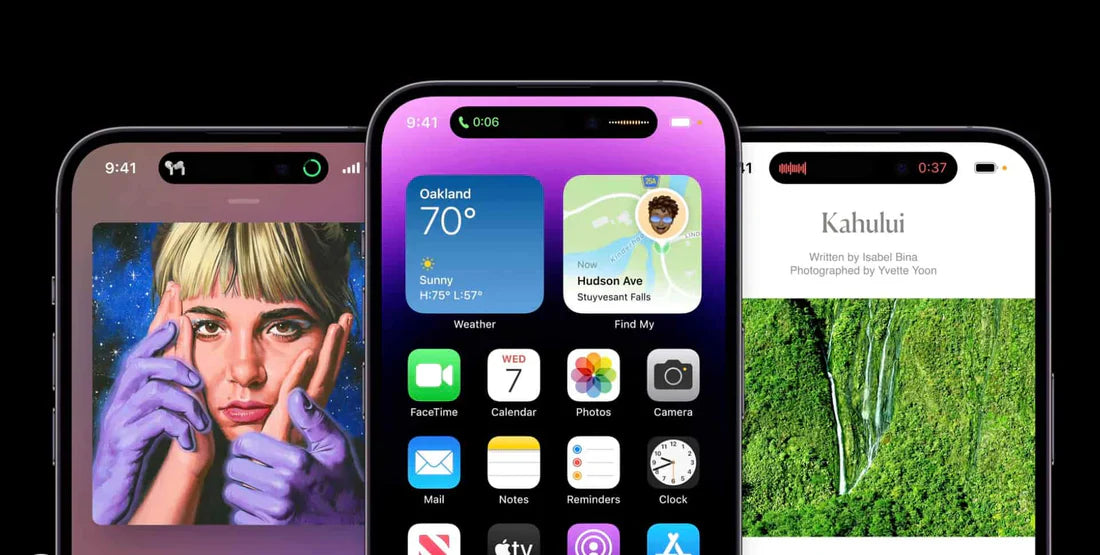
Set Dynamic Wallpapers and Widgets I recently discovered how to automatically change my wallpapers throughout the day with photos from my favorite trips. This, along with interactive widgets, makes my iPhone more than just a device—it's an extension of my style and preferences.
I encourage you to explore different themes and widgets to give your iPhone a unique personal touch. After all, it's not just about aesthetics; it's about how your device makes you feel.
Explore More Options

If you're considering upgrading to a newer model, I suggest you explore our entire iPhone collection , where you can find a variety of options to suit your personal and professional needs. Additionally, if you're looking for a reliable and more affordable option, the Refurbished iPhone 14 Pro is an excellent choice that offers great performance at a fantastic value.
In conclusion, my iPhone journey has been anything but monotonous. There are always new features, tools, and tricks to discover that can drastically improve my daily experience. What trick or setting have you discovered that has changed your iPhone experience? I'd love to hear about it in the comments.